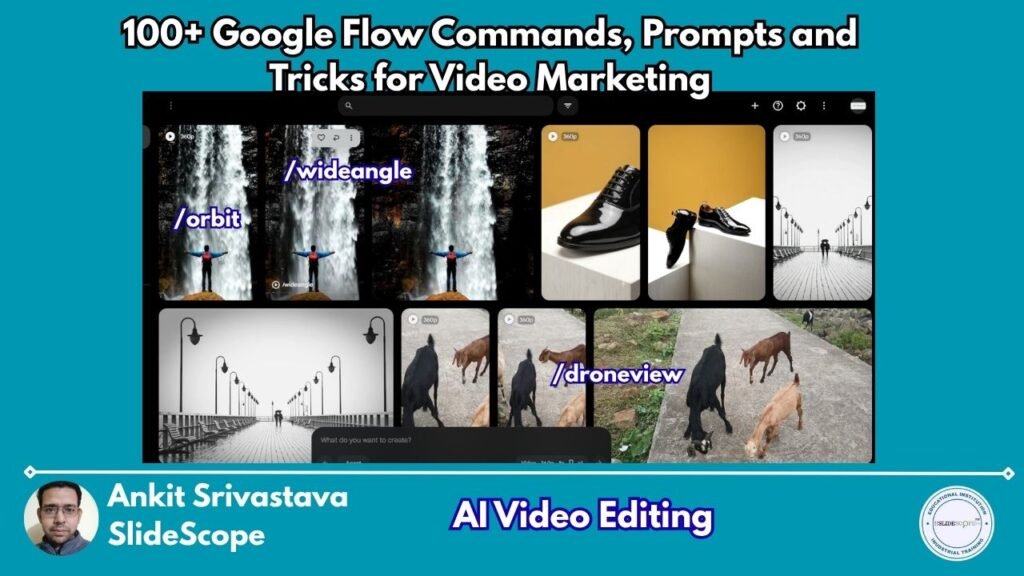
What Are Google Flow Prompts and Commands?
Creating an AI video can be as simple as describing a person, place and action. But if you want the result to feel more like a professionally directed shot, you need to think beyond the subject itself.
How should the camera move?
Should the scene feel intimate or expansive?
Should the subject dominate the frame?
Should the background remain blurred?
Should the lighting feel warm, mysterious, futuristic or dramatic?
This is where camera and visual prompt terminology becomes useful.
Creators often use short terms such as /orbit, /tracking, /closeup, /goldenhour and /shallowdepth as creative shorthand for visual instructions. However, these should not automatically be assumed to be official Google Flow slash commands. Google’s documented workflow emphasizes describing the subject, action, environment, lighting and style in natural language, while Flow also provides dedicated creative controls for camera movement and other filmmaking tasks.
So, think of the commands below as a visual prompt vocabulary. You can use the terms as shorthand, or write their meaning naturally inside your prompt.
A useful formula is:
Subject + Action + Environment + Camera + Movement + Lighting + Composition + Mood
For example:
A professional cyclist rides through a misty mountain road at sunrise. The camera tracks alongside the cyclist from a low angle while slowly moving closer. Warm golden-hour lighting, atmospheric haze, shallow depth of field and cinematic composition.
The more clearly you communicate the intended shot, the easier it becomes to guide the visual result.
1. Camera & Movement Commands
Camera and movement instructions determine how the viewer experiences the scene. They are especially useful for advertisements, travel videos, cinematic storytelling, product demonstrations and social media videos.
| Command | What It Does | Best Used For |
|---|---|---|
/cinematic | Creates a film-like visual treatment with deliberate camera work and presentation. | Brand films, storytelling, dramatic scenes |
/droneview | Suggests an elevated aerial perspective similar to drone footage. | Landscapes, properties, travel, city scenes |
/closeup | Brings the camera close to the subject or an important detail. | Products, faces, emotions |
/wideangle | Uses a wider field of view to capture more of the environment. | Travel, architecture, establishing shots |
/orbit | Moves the camera around the subject. | Product showcases, character reveals |
/dollyin | Gradually moves the camera toward the subject. | Product reveals, emotional moments |
/dollyout | Gradually moves the camera away from the subject. | Reveals, transitions, endings |
/tracking | Follows a moving subject through the environment. | Running, walking, vehicles, action |
/slowmotion | Suggests visibly slowed movement. | Sports, beauty, dramatic action |
/timelapse | Compresses a long period into a short sequence. | Sunsets, construction, city movement |
/hyperlapse | Creates accelerated movement through space with a dynamic camera perspective. | Travel, city tours, transitions |
Here is a video created with
This video was created with /droneview command
This video was created with /cinematic command
How to use camera movement
Camera movement should have a purpose.
For example, if a person is running through a city, /tracking makes sense because the camera follows the action.
If a product needs to be revealed gradually, /dollyin can help create anticipation.
If the environment is the main attraction, /droneview or /wideangle can establish the location before moving closer.
2. Advanced Camera Angles
Camera angle is different from camera movement.
A low angle describes where the camera is positioned, while a dolly-in describes how the camera moves.
You can combine both to create more specific visual directions.
| Command | What It Does | Best Used For |
|---|---|---|
/lowangle | Positions the camera below the subject and looks upward. | Hero shots, scale, authority |
/highangle | Positions the camera above the subject and looks downward. | Context, vulnerability, overhead action |
/overhead | Creates a top-down view of the scene. | Food, products, layouts, choreography |
/pov | Presents the scene from the subject’s point of view. | Immersive storytelling, demonstrations |
/overtheshoulder | Frames the scene from behind a person’s shoulder. | Conversations, tutorials, storytelling |
/establishing | Introduces the location with a broad environmental shot. | Films, travel, real estate |
/rackfocus | Shifts visual focus from one subject or depth plane to another. | Reveals, conversations, product shots |
/handheld | Gives the scene the feel of handheld camera footage. | Documentary, realism, action |
/steadicam | Suggests smooth stabilized camera movement. | Walkthroughs, commercials, tracking |
/craneup | Moves the camera upward as if using a crane or jib. | Reveals, dramatic endings |
/cranedown | Moves the camera downward into or toward the scene. | Openings, reveals, transitions |
Example
A luxury car stands outside a modern glass building,
/lowangle,/dollyin, with dramatic rim lighting.
The low angle establishes scale, while the dolly-in gradually increases attention on the vehicle.
3. Motion & Action Commands
These instructions describe the movement of the subject or action taking place inside the scene rather than just the camera.
| Command | What It Does | Best Used For |
|---|---|---|
/running | Indicates that the subject should run. | Sports, action, lifestyle |
/walking | Describes natural walking movement. | Travel, fashion, lifestyle |
/turnaround | Requests a turn or rotation of the subject. | Fashion, products, character reveals |
/reveal | Gradually introduces a subject, object or environment. | Product launches, storytelling |
/entrance | Focuses on a subject entering the scene. | Brand videos, storytelling |
/exit | Focuses on a subject leaving the scene. | Transitions, narrative endings |
/freeze | Suggests a frozen or paused visual moment. | Dramatic emphasis, transitions |
/speedramp | Changes the apparent speed within the shot. | Reels, sports, action |
/bullettime | Suggests frozen action while the camera moves around the subject. | Action sequences, dramatic reveals |
/floating | Suggests weightless or hovering movement. | Fantasy, surreal scenes |
/falling | Describes downward movement through the scene. | Action, dramatic or surreal visuals |
Rather than simply writing /speedramp, describe the action as well:
A skateboarder accelerates toward a ramp, performs the jump and slows dramatically at the peak of the trick, creating a speed-ramp effect.
This gives the AI both the visual shorthand and the actual narrative behavior.
4. Cinematic Lighting Commands
Lighting can completely change the emotional character of a scene.
The same person standing in the same location can look warm and welcoming under golden-hour light, mysterious under blue-hour lighting or futuristic beneath neon lights.
| Command | What It Does | Best Used For |
|---|---|---|
/goldenhour | Suggests warm, soft sunrise or sunset lighting. | Travel, lifestyle, portraits |
/bluehour | Creates cool atmospheric light around dusk or dawn. | Cityscapes, travel, mood scenes |
/neonlight | Introduces colorful artificial neon illumination. | Nightlife, technology, urban scenes |
/moody | Creates darker, atmospheric lighting with emotional depth. | Storytelling, portraits, drama |
/softlight | Uses diffused light with gentle shadows. | Beauty, products, portraits |
/rimlight | Adds light around the subject’s edges. | Portraits, products |
/silhouette | Places the subject mostly in shadow against a brighter background. | Sunsets, dramatic storytelling |
/spotlight | Concentrates attention using a focused light source. | Stage scenes, products |
/volumetric | Suggests visible light rays through atmospheric elements. | Forests, interiors, cinematic scenes |
/backlight | Places the primary light source behind the subject. | Silhouettes, portraits, products |
/nightscene | Establishes a scene designed around nighttime lighting. | Cities, nightlife, cinematic scenes |
Better lighting prompts
Instead of simply writing:
/neonlight
Try:
A futuristic street market at night with wet pavement reflecting colorful signs, neon lighting, atmospheric haze and a moody cinematic atmosphere.
The environment gives the lighting instruction context.
5. Composition & Framing Commands
Composition controls how elements are arranged inside the frame. It can determine what the viewer notices first and where the subject sits relative to the surrounding environment.
| Command | What It Does | Best Used For |
|---|---|---|
/wide | Creates broad framing that includes more of the environment. | Landscapes, architecture |
/tight | Uses tighter framing around the subject. | Products, faces, details |
/minimal | Keeps the frame visually simple and uncluttered. | Product advertising, design |
/leadinglines | Uses environmental lines to guide attention toward the subject. | Architecture, roads, interiors |
/ruleofthirds | Places important elements near the thirds of the frame. | Portraits, travel, storytelling |
/symmetry | Emphasizes balanced or mirrored visual structure. | Architecture, fashion, design |
/foreground | Uses a foreground element to add depth or frame the subject. | Landscapes, cinematic scenes |
/framewithinframe | Places the subject inside another visual frame such as a doorway or window. | Storytelling, architecture |
/diagonal | Uses diagonal structures to create energy and movement. | Action, sports, dynamic scenes |
/centered | Places the primary subject prominently in the center. | Products, portraits |
/negativespace | Leaves deliberate empty space around the subject. | Ads, titles, minimalist visuals |
These commands can also be useful for social media content.
For example:
A runner moves through a foggy forest,
/wide,/ruleofthirds,/negativespace.
The negative space could later provide room for a headline or branding.
6. Camera Effects
Camera-effect commands describe optical effects or visual treatments that can add texture and style to an AI-generated shot.
| Command | What It Does | Best Used For |
|---|---|---|
/motionblur | Adds the appearance of movement-related blur. | Action, vehicles, transitions |
/zoomblur | Creates blur associated with rapid zooming. | Transitions, energetic videos |
/bokeh | Creates soft out-of-focus highlights in the background. | Portraits, products, lifestyle |
/lensflare | Adds optical flare caused by bright light entering the lens. | Sunlight, dramatic commercials |
/vignette | Visually darkens or emphasizes the edges of the frame. | Cinematic, vintage looks |
/splittone | Creates contrasting tonal treatments between shadows and highlights. | Stylized photography |
/monochrome | Uses a single-color or monochromatic visual treatment. | Artistic campaigns |
/radialblur | Creates blur radiating from a focal point. | Action, transitions |
/prism | Suggests refracted or prism-like light effects. | Music, fashion, creative visuals |
/glitch | Adds digital distortion or corrupted-screen styling. | Technology, gaming, music |
/filmgrain | Adds photographic film-like grain and texture. | Vintage, cinematic styles |
Effects should normally support the subject rather than become the subject.
A prompt containing /glitch, /lensflare, /radialblur, /filmgrain and several other effects simultaneously may produce a visually confused result.
7. Focus & Depth Commands
Focus determines which parts of the image appear sharp and which appear softer. Depth-of-field instructions are especially useful for portraits, product videos, food photography and cinematic close-ups.
| Command | What It Does | Best Used For |
|---|---|---|
/macro | Creates an extremely close view of a small subject or detail. | Food, jewelry, textures |
/shallowdepth | Creates a narrow depth of field with a soft background. | Portraits, products |
/deepfocus | Keeps more foreground and background elements sharp. | Landscapes, group scenes |
/selectivefocus | Directs sharpness toward a chosen subject or area. | Storytelling, products |
/eyefocus | Prioritizes the subject’s eyes as the main focus point. | Portraits, interviews |
/centerfocus | Places visual focus on the central subject. | Products, symmetrical scenes |
/tunnelfocus | Creates strong visual emphasis toward a central area. | Dramatic reveals |
/focusstack | Suggests multiple focus distances appearing sharp. | Detailed products, macro scenes |
/dropfocus | Moves attention from sharp focus toward a softer state. | Dreamlike transitions |
/manualfocus | Suggests deliberate, controlled focus changes. | Cinematic, product scenes |
/bokehshape | Suggests shaped highlights in out-of-focus areas. | Creative portraits, festive scenes |
Example
Close-up of a luxury perfume bottle on polished marble,
/macro,/shallowdepth,/bokeh,/softlight.
The commands work together because each one addresses a different aspect of the shot.
8. Color Grading Commands
Color grading changes the overall visual tone and can influence the emotional perception of a scene.
| Command | What It Does | Best Used For |
|---|---|---|
/warm | Pushes the image toward warmer tones. | Lifestyle, food, hospitality |
/cool | Creates a cooler color atmosphere. | Technology, winter, corporate videos |
/contrast | Increases separation between light and dark areas. | Dramatic scenes, products |
/exposure | Suggests intentional brightness or darkness adjustments. | Creative photography styles |
/saturation | Increases or emphasizes color intensity. | Fashion, food, social content |
/desaturate | Reduces color intensity for a muted appearance. | Documentary, cinematic storytelling |
/cinematic | Suggests an overall film-oriented visual treatment. | Films, brand videos |
/tealorange | Creates contrast between teal/cyan and warm orange tones. | Action, cinematic content |
/vibrant | Creates a vivid, energetic color appearance. | Travel, food, social media |
/bw | Creates a black-and-white treatment. | Editorial, documentary, drama |
/neon | Emphasizes bright, saturated neon-like colors. | Technology, nightlife, music |
Notice that /cinematic appears in more than one category. This does not necessarily mean it is a technical command performing different operations. It is better understood as a broad creative direction that can influence the overall visual style.
How to Combine Google Flow Prompt Commands
The real power comes from combining different types of instructions.
For example:
A futuristic sports car drives through a rain-soaked city at night,
/tracking,/lowangle,/neonlight,/shallowdepth,/motionblur,/cinematic.
Here:
/trackingcontrols camera movement./lowanglecontrols perspective./neonlightcontrols illumination./shallowdepthcontrols focus./motionbluradds movement texture./cinematicestablishes the overall visual direction.
The result is much more specific than simply asking for:
“A cool futuristic car video.”
15 Prompt Commands Beginners Should Learn First
You do not need to memorize every command.
If you are starting with AI video generation, begin with these:
/orbit— rotating around a subject/tracking— following movement/dollyin— moving toward a subject/closeup— emphasizing detail or emotion/lowangle— creating scale and impact/pov— creating an immersive viewpoint/reveal— introducing a subject or environment/slowmotion— emphasizing movement/goldenhour— creating warm natural light/volumetric— adding atmospheric light rays/shallowdepth— isolating the subject/ruleofthirds— creating balanced composition/bokeh— creating soft background highlights/speedramp— creating changing movement speed/establishing— introducing the environment
These cover several fundamental areas: camera movement, framing, lighting, focus, composition and action.
How to Write a Better Google Flow Prompt
A good AI video prompt does not need to be unnecessarily long.
Instead, build it in layers.
1. Describe the Subject
Start with the main thing the viewer should see.
Instead of:
A person in a city.
Try:
A young street photographer carrying a vintage camera.
2. Describe the Action
Give the subject something meaningful to do.
The photographer walks through a crowded night market, stopping occasionally to photograph people.
3. Describe the Environment
Add the world surrounding the subject.
A narrow night market filled with food stalls, hanging signs, pedestrians and wet pavement.
4. Describe the Camera
Tell the AI how the scene should be viewed.
Medium cinematic tracking shot from slightly behind the photographer.
5. Describe the Movement
Explain how the camera behaves.
The camera smoothly tracks alongside the photographer and gradually pushes closer.
6. Describe the Lighting
Define the atmosphere.
Warm practical lights mixed with colorful neon reflections and subtle atmospheric haze.
7. Describe the Composition
Control visual positioning.
Keep the photographer on the left third of the frame while the market extends into the background.
8. Describe the Mood
Finish with the emotional direction.
Intimate, observational and cinematic.
This produces a much more complete visual instruction than simply stacking random commands.
5 Complete Google Flow-Style Prompt Examples
1. Product Advertisement
A premium black smartwatch rests on a polished stone surface in a modern studio. The camera slowly moves toward the watch while subtly orbiting around it. Soft directional lighting creates controlled reflections along the metal edges. Dark uncluttered background, shallow depth of field, precise product focus and elegant luxury-commercial style.
2. Travel Video
A tropical coastline at sunrise with turquoise water meeting a long sandy beach. The camera begins with a wide aerial perspective, moves smoothly along the coastline and gradually descends toward a small coastal village. Warm golden-hour light, atmospheric haze, realistic reflections and expansive cinematic composition.
3. Cinematic Character Scene
A lone explorer walks through an ancient forest covered in morning mist. Begin with a wide establishing shot, then smoothly track behind the character as they move deeper into the forest. Sunlight breaks through the trees in visible rays, creating soft backlighting and atmospheric depth. Mysterious, immersive cinematic mood.
4. Social Media Reel
A modern coffee shop comes alive during the morning rush. Begin with a close-up of espresso flowing into a ceramic cup, reveal the barista preparing the drink, then smoothly track the cup toward a customer. Warm natural lighting, shallow depth of field, energetic premium commercial style and vertical composition.
5. Business Promotional Video
A modern manufacturing facility during a busy production shift. Begin with a wide establishing shot of the factory floor, then track alongside an engineer inspecting a precision component. Transition into close-up details of the machinery and finished product. Clean industrial lighting, controlled camera movement and professional corporate visual style.
10 Ready-to-Use Command Combinations
1. Cinematic Travel Reveal
Wide aerial view of a mountain valley at sunrise, slowly descending toward a lone hiker,
/goldenhour,/volumetric,/wide,/reveal, cinematic atmosphere.
2. Premium Product Shot
A luxury perfume bottle on a dark reflective surface,
/orbit,/rimlight,/shallowdepth,/bokeh, elegant commercial composition.
3. Futuristic City
A lone cyclist rides through a futuristic city at night,
/tracking,/lowangle,/neonlight,/motionblur,/shallowdepth.
4. Emotional Portrait
Close portrait of an elderly craftsman looking toward a workshop window,
/closeup,/dollyin,/softlight,/eyefocus, intimate documentary mood.
5. Food Advertisement
Fresh pasta being plated in a modern restaurant kitchen,
/macro,/overhead,/slowmotion,/softlight,/shallowdepth, premium food-commercial style.
6. Sports Sequence
A professional runner accelerates toward the finish line,
/tracking,/lowangle,/speedramp,/backlight, dramatic directional composition.
7. Architecture
A modern glass skyscraper at blue hour,
/cranedown,/symmetry,/bluehour,/wide, reflective cinematic composition.
8. Fashion Reel
A fashion model walks through a minimalist urban location,
/steadicam,/tracking,/tight,/softlight,/shallowdepth, editorial fashion aesthetic.
9. Technology Advertisement
A futuristic laptop sits on a minimalist desk,
/dollyin,/orbit,/cool,/rimlight,/shallowdepth, premium technology-commercial style.
10. Cinematic Story Hook
A mysterious door stands alone in a foggy forest. Begin with a distant wide shot, slowly move toward the door, reveal a faint warm light beneath it, then push closer as fog moves through the frame.
/moody,/volumetric,/reveal, suspenseful cinematic atmosphere.
Common Google Flow Prompting Mistakes
Using Too Many Commands
More commands do not automatically mean a better video.
If you combine too many movements, effects, lighting styles and color treatments, the visual direction can become contradictory.
Giving Conflicting Camera Directions
For example:
The camera slowly pushes forward while rapidly pulling backward.
Unless you intentionally want a complex effect, these instructions compete with each other.
Adding Too Many Effects
Using /glitch, /lensflare, /filmgrain, /radialblur, /neon and several other effects simultaneously can distract from the subject.
Use effects because they support the story.
Ignoring Subject Movement
Camera movement and subject movement are different.
Instead of:
/tracking
write:
The camera tracks alongside the cyclist as the cyclist accelerates down the road.
Forgetting Framing
Compare:
A person walking.
with:
A medium-wide shot of a person walking through a crowded street, positioned on the right third of the frame.
The second gives much stronger visual direction.
Using Vague Descriptions
Words such as “awesome,” “beautiful” and “cool” are less useful than specific visual instructions.
Instead of:
Beautiful lighting.
Try:
Soft warm side lighting with subtle atmospheric haze.
Treating Every Slash Command as Official
This is important.
These terms are best understood as creative prompt shorthand. The referenced source itself distinguishes community-style prompt language from officially documented Google Flow functionality. Google’s documented approach emphasizes natural-language scene descriptions and available creative controls.
Are These Actually Official Google Flow Commands?
Not necessarily.
The terms in this guide are useful ways of communicating cinematic concepts, but users should not assume that every /command is a built-in Google Flow function.
Google’s documented prompting approach focuses on describing the subject, action, environment, lighting and style, while Flow also offers specific creative controls for camera position, motion, references and other filmmaking workflows. Availability can vary according to the model, platform, subscription and region.
So instead of depending entirely on:
/dollyin /goldenhour /shallowdepth
you can write:
Slowly push the camera toward the subject during warm golden-hour light while keeping the background softly out of focus.
That communicates exactly what you want without depending on whether a particular slash term is recognized as a command.
The Most Important Rule: Think Like a Director
The goal is not to fill your prompt with as many commands as possible.
Think about the shot first.
What should the audience see?
What should the subject do?
Where should the camera be?
How should it move?
Where should the light come from?
What should remain in focus?
What should the viewer feel?
Once you answer those questions, the appropriate prompt language becomes much easier to choose.
An orbit can reveal a product.
A tracking shot can follow a runner.
A dolly-in can create anticipation.
A close-up can emphasize emotion.
A wide shot can establish a location.
Golden-hour lighting can create warmth.
Shallow depth of field can isolate the subject.
Rule of thirds can create balanced composition.
The command itself is only a shortcut for the creative decision behind it.
Final Thoughts
AI video generation is moving beyond simple text-to-video descriptions. The more creators learn about camera language, composition, lighting, focus and movement, the more control they can bring to their prompts.
You do not need to memorize every command in this guide.
Start with a few fundamentals:
Camera → Movement → Lighting → Composition → Focus → Color → Mood
Then combine them according to the story.
A simple prompt with one clear subject, one purposeful camera movement and appropriate lighting can often be more effective than a prompt overloaded with effects.
Most importantly, remember that these slash terms are best treated as creative prompt ideas and shorthand, not as a guaranteed official 99-command language for Google Flow. The underlying filmmaking concepts are what matter.
Start with the story. Then direct the shot.
Disclaimer
The commands and examples in this article are presented as creative prompt-writing references. Slash-style terms may not function as official built-in commands in Google Flow, and results can vary depending on the model, interface, settings and availability. Always refer to Google’s current documentation for officially supported Flow features.

Ankit Srivastava is an IT trainer, technology educator, and digital skills mentor with expertise in programming, data analytics, AI, and software development. He has successfully trained thousands of learners, with more than 10,000 student enrollments on Udemy. His practical teaching approach empowers students and professionals to build in-demand technical skills. Colorstech channel where Ankit posts video tutorials has more than 8000 Subscribers.