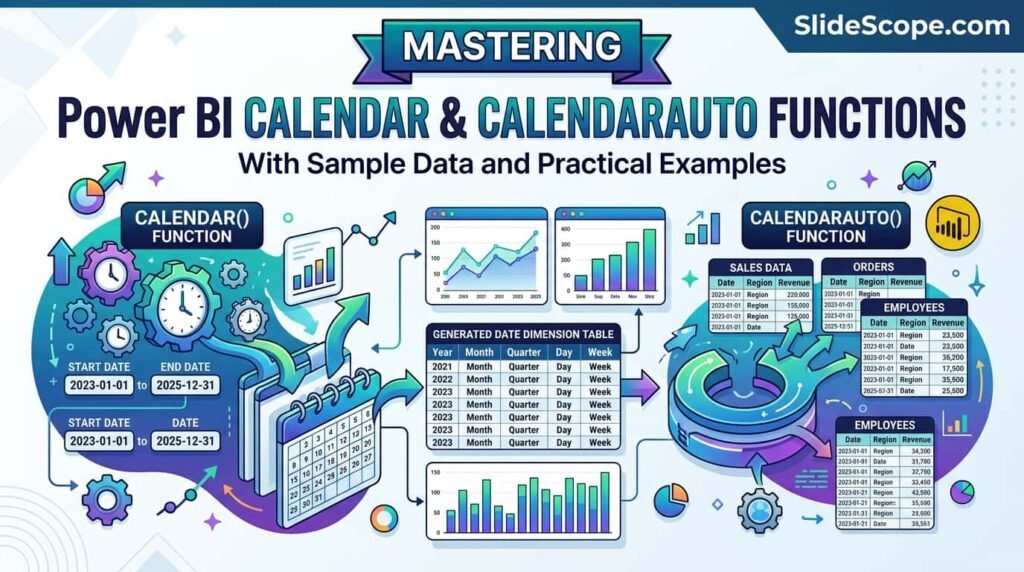
Hi, I’m Ankit, and one of the most important lessons I teach during Power BI training sessions is that proper date management is the backbone of accurate reporting and analytics. Many beginners jump directly into creating charts and dashboards without understanding how Power BI handles dates internally. This often leads to incorrect time intelligence calculations, broken visuals, and reporting inconsistencies. That is exactly where Power BI’s CALENDAR and CALENDARAUTO functions become game changers.
When building business reports, organizations frequently need to analyze sales trends, monthly revenue, yearly growth, employee attendance, inventory movement, marketing performance, and financial forecasting. All these reports rely heavily on a proper Date Table. Without a dedicated calendar table, features such as Year-to-Date calculations, Month-over-Month comparisons, and fiscal analysis may not work properly.
The CALENDAR and CALENDARAUTO functions in Power BI DAX are specifically designed to generate date tables dynamically. These functions simplify time-based reporting and help create professional-level dashboards with advanced analytics capabilities. Understanding the difference between these two functions can significantly improve the quality and flexibility of your Power BI projects.
In this article, we will deeply explore both functions using practical examples, sample datasets, real-world business use cases, and implementation techniques. Whether you are a beginner or an experienced data analyst, this guide will help you master Power BI date table creation effectively.
Understanding the Importance of Date Tables in Power BI
Before learning CALENDAR and CALENDARAUTO, it is important to understand why Date Tables are essential in Power BI. Power BI’s time intelligence functions such as TOTALYTD, SAMEPERIODLASTYEAR, DATEADD, and PARALLELPERIOD require a proper continuous date table to work correctly. Without one, your calculations may return inaccurate results or errors.
Consider a retail company that records sales transactions daily. If the data only contains transaction dates and lacks a structured calendar table, analysts may struggle to compare monthly trends or identify yearly growth patterns. A Date Table acts as a central timeline connecting all business activities across datasets.
A typical Date Table contains columns such as:
- Date
- Year
- Month Name
- Month Number
- Quarter
- Week Number
- Fiscal Year
- Day Name
Using these attributes, organizations can build advanced dashboards for trend analysis, forecasting, seasonal performance evaluation, and operational monitoring.
For example, a company may want to identify:
- Highest sales month
- Quarterly growth percentage
- Weekend vs weekday performance
- Fiscal year profitability
- Monthly employee attendance trends
Power BI’s CALENDAR and CALENDARAUTO functions automate the creation of these date structures, saving significant development time and reducing errors.
A proper Date Table also improves data consistency. Instead of depending on scattered dates across multiple tables, Power BI uses a centralized structure that enhances model performance and relationships.
This becomes even more critical in enterprise reporting environments where multiple departments rely on synchronized date-based analytics.
Introduction to Power BI CALENDAR Function
The CALENDAR function in Power BI DAX creates a single-column table containing continuous dates between a specified start date and end date. It is one of the most widely used functions for building custom Date Tables.
The syntax of CALENDAR is:
CALENDAR(StartDate, EndDate)
The function requires two parameters:
- Start Date
- End Date
Example:
DateTable =
CALENDAR(
    DATE(2024,1,1),
    DATE(2025,12,31)
)
This creates a table containing every date from January 1, 2024, to December 31, 2025.
The CALENDAR function is extremely useful when organizations know the exact reporting range they want to use. For instance:
- Financial reports for specific years
- Academic reporting sessions
- Project management timelines
- Fiscal year tracking
One major advantage of CALENDAR is flexibility. Developers can fully control the date range and customize the output according to business requirements.
After generating the date table, additional calculated columns can be added:
Year = YEAR(DateTable[Date])

Month = FORMAT(DateTable[Date], "MMMM")

Quarter = "Q" & FORMAT(DateTable[Date], "Q")
These calculated columns enhance reporting capabilities and simplify dashboard creation.
Businesses often use CALENDAR when they need controlled date ranges rather than automatic date detection. This makes it ideal for large enterprise datasets where consistency and precision are important.
Understanding CALENDARAUTO Function in Power BI
Unlike CALENDAR, the CALENDARAUTO function automatically detects the minimum and maximum dates available in the data model and generates a continuous date table accordingly.
The syntax is:
CALENDARAUTO(FiscalYearEndMonth)
Example:
AutoDateTable = CALENDARAUTO()This function scans all date columns in the Power BI model and automatically creates a calendar table covering the entire date range.
Suppose your datasets contain records from:
- January 2022
- March 2026
CALENDARAUTO will automatically generate all dates between those periods.
This function is highly beneficial when:
- Data updates frequently
- New dates are continuously added
- Automated reporting is required
- Manual maintenance should be minimized
An optional parameter allows defining fiscal year ending month:
AutoDateTable = CALENDARAUTO(3)Here, fiscal year ends in March.
CALENDARAUTO is commonly used in dynamic business environments where datasets change regularly. Instead of manually updating date ranges, Power BI automatically adjusts the calendar table.
However, developers must use CALENDARAUTO carefully because it scans all date columns in the model. Sometimes unwanted date fields can affect the generated range.
Despite this limitation, CALENDARAUTO remains one of the fastest ways to create automated date tables for scalable business intelligence solutions.
Sample Dataset for CALENDAR and CALENDARAUTO Examples
Let us consider a sample Sales dataset:
| OrderID | OrderDate | SalesAmount |
|---|---|---|
| 1001 | 2024-01-05 | 1500 |
| 1002 | 2024-01-10 | 3200 |
| 1003 | 2024-02-15 | 2100 |
| 1004 | 2024-03-20 | 4500 |
| 1005 | 2024-04-08 | 3900 |
Using this dataset, we can create Date Tables.
Using CALENDAR
DateTable =
CALENDAR(
    MIN(Sales[OrderDate]),
    MAX(Sales[OrderDate])
)
This dynamically creates a date range based on minimum and maximum order dates.
Using CALENDARAUTO
AutoDateTable =
CALENDARAUTO()
This automatically scans all date fields in the model.
Next, we can enrich the table:
MonthName = FORMAT(DateTable[Date], "MMMM")

Year = YEAR(DateTable[Date])

Weekday = FORMAT(DateTable[Date], "dddd")
These additional columns help create:
- Monthly sales charts
- Weekly trend reports
- Quarterly dashboards
- Yearly comparisons
Sample business visuals include:
- Revenue by month
- Quarter-wise sales
- Daily transaction trends
- Weekend sales analysis
The flexibility of DAX allows organizations to transform simple date tables into highly powerful analytical structures.
Difference Between CALENDAR and CALENDARAUTO
Although both functions generate date tables, they operate differently.
CALENDAR
- Requires manual start and end dates
- Provides complete control
- Best for fixed reporting ranges
- Ideal for enterprise-controlled environments
CALENDARAUTO
- Automatically detects dates
- Reduces manual effort
- Best for dynamic datasets
- Ideal for automated reporting systems
For example, suppose a company maintains annual reports from 2020 to 2030 regardless of available transaction data. In such cases, CALENDAR is more appropriate.
On the other hand, an eCommerce platform receiving daily transactions may prefer CALENDARAUTO because date ranges continuously expand.
Another major difference is predictability.
CALENDAR generates exactly what developers specify.
CALENDARAUTO depends on existing model data, which may sometimes create unexpectedly large date ranges if irrelevant date columns exist.
Performance considerations also matter in enterprise environments. Controlled date ranges using CALENDAR can reduce unnecessary memory consumption.
In contrast, CALENDARAUTO improves automation and reduces maintenance efforts.
Choosing the right function depends entirely on business requirements, reporting complexity, and model structure.
Creating Advanced Date Tables Using CALENDAR
Professional Power BI developers rarely stop at basic date generation. Advanced Date Tables often include multiple calculated columns for better reporting.
Example:
DateTable =
ADDCOLUMNS(
    CALENDAR(DATE(2024,1,1), DATE(2025,12,31)),

    "Year", YEAR([Date]),

    "Month Number", MONTH([Date]),

    "Month Name", FORMAT([Date], "MMMM"),

    "Quarter", "Q" & FORMAT([Date], "Q"),

    "Weekday", FORMAT([Date], "dddd"),

    "Week Number", WEEKNUM([Date])
)
This creates a fully enriched Date Table.
Benefits include:
- Better filtering
- Simplified slicers
- Improved drill-down capabilities
- Enhanced time intelligence
Organizations use advanced date structures for:
- Financial forecasting
- HR attendance monitoring
- Production scheduling
- Marketing campaign analysis
For example, a retail dashboard may allow users to:
- Filter by quarter
- Compare weekdays
- Analyze holiday sales
- Track seasonal performance
A robust Date Table improves dashboard usability and analytical accuracy.
Advanced models may also include:
- Fiscal year columns
- Holiday indicators
- Financial periods
- Working day flags
These enhancements enable deeper business insights and enterprise-grade analytics.
Using Time Intelligence with CALENDAR Tables
One of the biggest advantages of Date Tables is enabling time intelligence calculations.
Example: Year-to-Date Sales
YTD Sales =
TOTALYTD(
    SUM(Sales[SalesAmount]),
    DateTable[Date]
)
Example: Previous Year Sales
Previous Year Sales =
CALCULATE(
    SUM(Sales[SalesAmount]),
    SAMEPERIODLASTYEAR(DateTable[Date])
)
These functions require a proper continuous date table.
Businesses use these calculations for:
- Revenue growth analysis
- Performance benchmarking
- Seasonal forecasting
- Financial reporting
Suppose a company wants to compare current month sales with last year’s performance. Without a dedicated Date Table, such analysis becomes difficult.
Power BI’s time intelligence engine relies heavily on correctly structured date dimensions.
This is why mastering CALENDAR and CALENDARAUTO becomes essential for professional dashboard developers.
Time intelligence measures can transform simple reports into strategic decision-making systems.
Executives often depend on these metrics for:
- Budget planning
- Resource allocation
- Market expansion
- Investment decisions
A properly designed Date Table therefore directly contributes to better business intelligence outcomes.
Common Mistakes While Using CALENDAR and CALENDARAUTO
Many beginners make mistakes while implementing these functions.
Mistake 1: Using Non-Continuous Dates
A Date Table must contain continuous dates without gaps.
Mistake 2: Forgetting to Mark as Date Table
After creating the table:
- Go to Table Tools
- Select “Mark as Date Table”
This step is critical.
Mistake 3: Incorrect Relationships
Ensure the Date Table connects properly with fact tables.
Mistake 4: Using CALENDARAUTO with Irrelevant Dates
Hidden or unused date columns can create unnecessarily large ranges.
Mistake 5: Missing Fiscal Logic
Organizations using fiscal years should configure fiscal calendars properly.
Example:
FiscalCalendar = CALENDARAUTO(3)This sets March as fiscal year end.
Avoiding these mistakes improves:
- Performance
- Accuracy
- Dashboard reliability
- Reporting consistency
Professional Power BI developers always validate their date structures before building complex analytics.
Real-World Business Use Cases
CALENDAR and CALENDARAUTO functions are used across industries.
Retail Industry
- Sales trend analysis
- Seasonal demand forecasting
- Promotion performance tracking
Healthcare Industry
- Patient admission analysis
- Appointment tracking
- Resource utilization monitoring
Finance Industry
- Fiscal reporting
- Budget forecasting
- Quarterly analysis
Manufacturing Industry
- Production scheduling
- Downtime monitoring
- Inventory movement tracking
Education Sector
- Attendance analysis
- Academic session reporting
- Examination performance tracking
For example, an eCommerce company may create dashboards showing:
- Daily revenue
- Monthly orders
- Quarterly customer growth
- Holiday season performance
A manufacturing company may track machine utilization trends across months.
The flexibility of CALENDAR and CALENDARAUTO makes them foundational tools in enterprise BI solutions.
Best Practices for Using CALENDAR and CALENDARAUTO
To build scalable Power BI solutions, developers should follow best practices.
Use Dedicated Date Tables
Avoid relying directly on transaction date columns.
Add Useful Attributes
Include:
- Year
- Quarter
- Month
- Weekday
- Fiscal periods
Keep Naming Consistent
Use clear table names like:
- DateTable
- CalendarTable
- DimDate
Optimize Relationships
Use one-to-many relationships between Date Table and fact tables.
Avoid Unnecessary Date Ranges
Large date ranges can impact performance.
Use Fiscal Calendars When Needed
Many businesses do not follow calendar years.
Mark Date Tables Properly
Always use the “Mark as Date Table” option.
Following these practices improves model maintainability and enterprise scalability.
How SlideScope Institute Can Help
At SlideScope Institute, we provide practical Power BI training designed for students, working professionals, business analysts, and corporate teams. Our training programs focus on real-world implementation rather than only theoretical concepts.
We help learners master:
- Power BI DAX Functions
- Data Modeling
- Dashboard Development
- SQL Integration
- Business Intelligence Reporting
- Time Intelligence Calculations
- Data Visualization
- Power Query Transformation
Our hands-on approach includes:
- Live Projects
- Sample Datasets
- Industry Case Studies
- Interview Preparation
- Portfolio Building
- Dashboard Deployment
Students learn how to implement functions like CALENDAR and CALENDARAUTO in real business scenarios such as sales analytics, HR dashboards, financial reporting, inventory management, and marketing analysis.
Whether you are a beginner or an experienced professional looking to upgrade your analytics skills, SlideScope Institute can help you become industry-ready with advanced Power BI expertise.
Conclusion
The CALENDAR and CALENDARAUTO functions are fundamental components of Power BI data modeling and time intelligence. They simplify the process of creating Date Tables and enable powerful analytical capabilities across dashboards and reports.
While CALENDAR provides complete control over date ranges, CALENDARAUTO offers automation and flexibility for dynamic datasets. Choosing the right function depends on business requirements, reporting structure, and model complexity.
Understanding these functions allows analysts to create more accurate reports, build advanced time-based calculations, and improve overall dashboard performance. From retail and healthcare to finance and manufacturing, nearly every industry benefits from properly designed date dimensions.
Mastering these DAX functions is an essential step toward becoming a professional Power BI developer and business intelligence expert.

Ankit Srivastava is an IT trainer, technology educator, and digital skills mentor with expertise in programming, data analytics, AI, and software development. He has successfully trained thousands of learners, with more than 10,000 student enrollments on Udemy. His practical teaching approach empowers students and professionals to build in-demand technical skills. Colorstech channel where Ankit posts video tutorials has more than 8000 Subscribers.