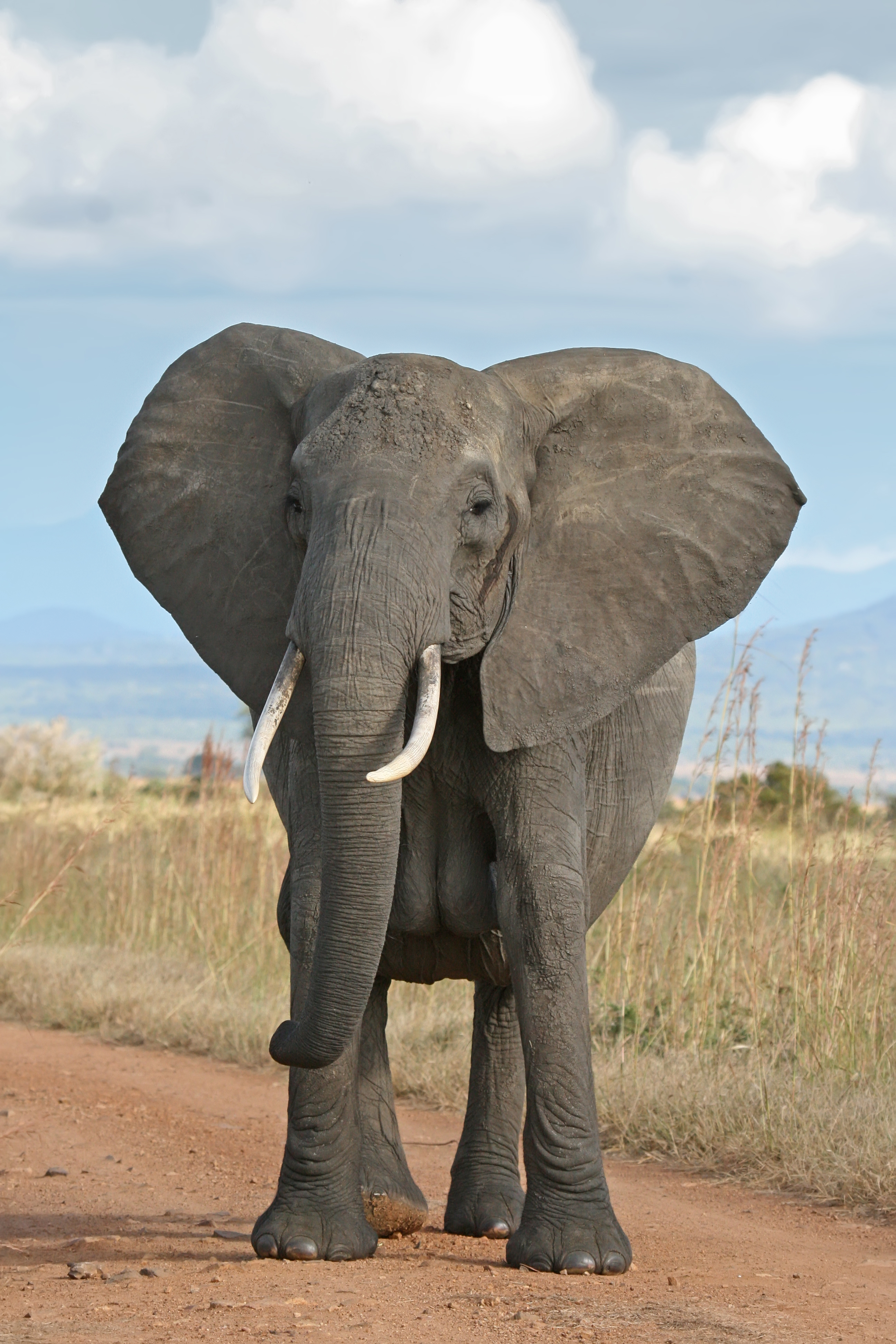
Here’s an example dataset with image URLs that you can use to demonstrate displaying images in Power BI:
Dataset Example: Animals with Image URLs
| Animal Name | Description | Image URL |
|---|---|---|
| Cat | Domestic feline | https://cdn2.thecatapi.com/images/MTY3ODIyMQ.jpg |
| Dog | Domestic canine | https://images.dog.ceo/breeds/hound-afghan/n02088094_1003.jpg |
| Elephant | Large mammal | https://upload.wikimedia.org/wikipedia/commons/3/37/African_Bush_Elephant.jpg |
| Panda | Giant panda bear | https://upload.wikimedia.org/wikipedia/commons/0/0f/Grosser_Panda.JPG |
| Tiger | Wild feline predator | https://upload.wikimedia.org/wikipedia/commons/5/56/Tiger.50.jpg |
Steps to Use in Power BI:
- Copy the table above into a CSV or Excel file.
- Load the dataset into Power BI using Get Data.
- Set the Image URL column’s data category to Image URL:
- Go to Data View.
- Select the Image URL column.
- In the Column Tools ribbon, set Data Category to Image URL.
- Add the Animal Name and Image URL columns to a Table Visual.
This will display each animal’s name alongside its corresponding image in the table.

Ankit Srivastava is an IT trainer, technology educator, and digital skills mentor with expertise in programming, data analytics, AI, and software development. He has successfully trained thousands of learners, with more than 10,000 student enrollments on Udemy. His practical teaching approach empowers students and professionals to build in-demand technical skills. Colorstech channel where Ankit posts video tutorials has more than 8000 Subscribers.